

Setting Up Your First Workspace
When you create a new workspace, TakeProfit opens the Create a new workspace screen:Pick a template for how you trade — you can change everything later.Each template is a ready-made layout of widgets tuned for a specific style of trading. Selecting one instantly populates your workspace, and you can rearrange, resize, add, or remove any widget afterward. Use How it works for a quick walkthrough, or Read the Docs to open this guide.
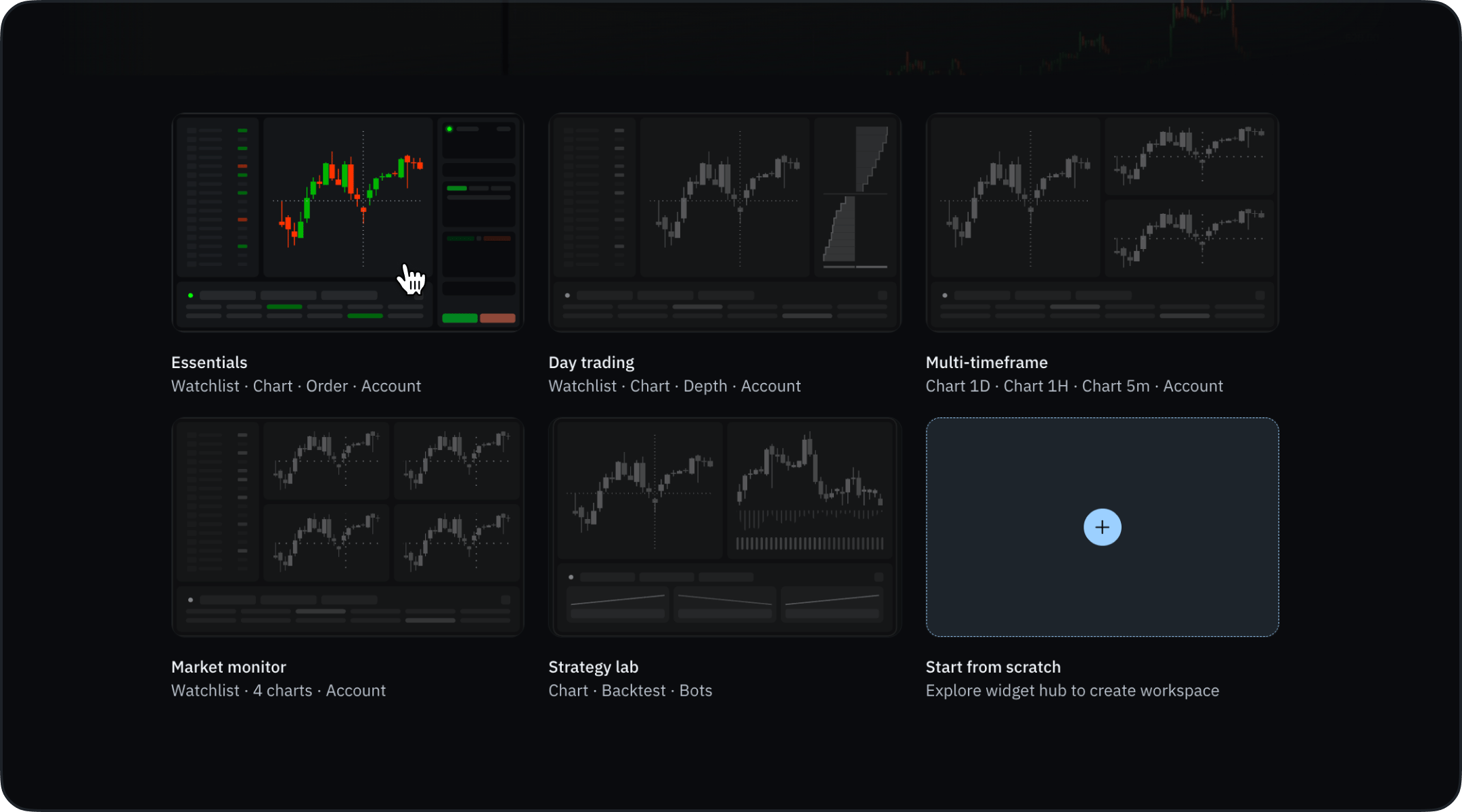
Pick a template
Essentials
Watchlist · Chart · Order · AccountAn all-purpose layout with everything you need to analyze and place a trade on a single screen.
Day trading
Watchlist · Chart · Depth · AccountAdds the Depth of Market (order book) for reading liquidity on fast, intraday setups.
Multi-timeframe
Chart 1D · Chart 1H · Chart 5m · AccountThree charts across the daily, hourly, and 5-minute timeframes so you can trade with full context.
Market monitor
Watchlist · 4 charts · AccountFour charts alongside your watchlist to track multiple symbols at a glance.
Strategy lab
Chart · Backtest · BotsBuild, backtest with the Strategy/Backtesting widget, and automate with bots — all in one workspace.
Start from scratch
Prefer to build your own layout? Choose Start from scratch to begin with an empty canvas and the Widget Hub:- Complete Freedom: Begin with just the Widget Hub
- Custom Design: Add only the exact tools you need
- Perfect Positioning: Arrange everything precisely to your specifications.
Key Workspace Features
- Unlimited Layouts: Create separate workspaces for different strategies, markets, or timeframes — unlimited on All-In, 2 on Freeroll
- Flexible Arrangement: Resize, reposition, and reconfigure any widget
- Widget Synchronization: Link related widgets to work together
- Persistent Setups: Your workspaces are saved automatically
- Light Mode: Offers three display options: Light, Dark, and System.
Managing your workspaces
Your workspaces sit as tabs in the platform header, next to the logo. Click one to switch to it.The tab menu
Right-click any tab to open its menu:
A divider separates the two destructive items from the rest, and both ask for confirmation.
Reorder
Reordering isn’t in the menu — drag the tab along the row instead. The tabs around it shift to make room as you go, and the order you leave them in is saved; it is still there after a reload.On Freeroll: Locked workspaces depend on when you created them, not where they sit in the row. Moving a tab doesn’t change what you can open.
Theme Settings
TakeProfit supports multiple visual themes that control the appearance of the entire platform interface. You can quickly switch between themes using the Theme Settings button (moon icon) located in the top-right toolbar. Clicking this icon opens the Theme Configuration panel, where you can:- Select a predefined theme
- Create a custom user theme
- Adjust interface color parameters
Pre-assembled Themes
The platform includes three default themes:- Dark — the default theme optimized for long trading sessions and low-light environments
- Light — a brighter interface designed for well-lit environments
- System — automatically follows your operating system’s theme preference
Creating a Custom Theme
You can create your own interface theme using the Add theme (+) option. Steps:- Open Theme Settings
- Click Add theme (+)
- A new User Theme will appear in the theme list
- Customize the available color parameters
- The changes are applied instantly
Theme Color Parameters
Each theme can be customized using several interface color settings:- Background — main workspace background color
- Text — interface text color
- Rise — color used for positive price movement
- Fall — color used for negative price movement
- Buy — color used for buy-related elements
- Sell — color used for sell-related elements
- Accent — highlight color used across interface elements
Behavior Notes
- Theme changes apply immediately across all workspaces.
- The selected theme persists across sessions until changed again.
- Custom themes can be created and modified at any time.
Changing the platform theme does not override chart-specific colors configured in Chart Style settings (such as candle colors or indicator colors). If chart elements become difficult to see after switching themes, adjust the chart style settings accordingly.
Workspace Hotkeys
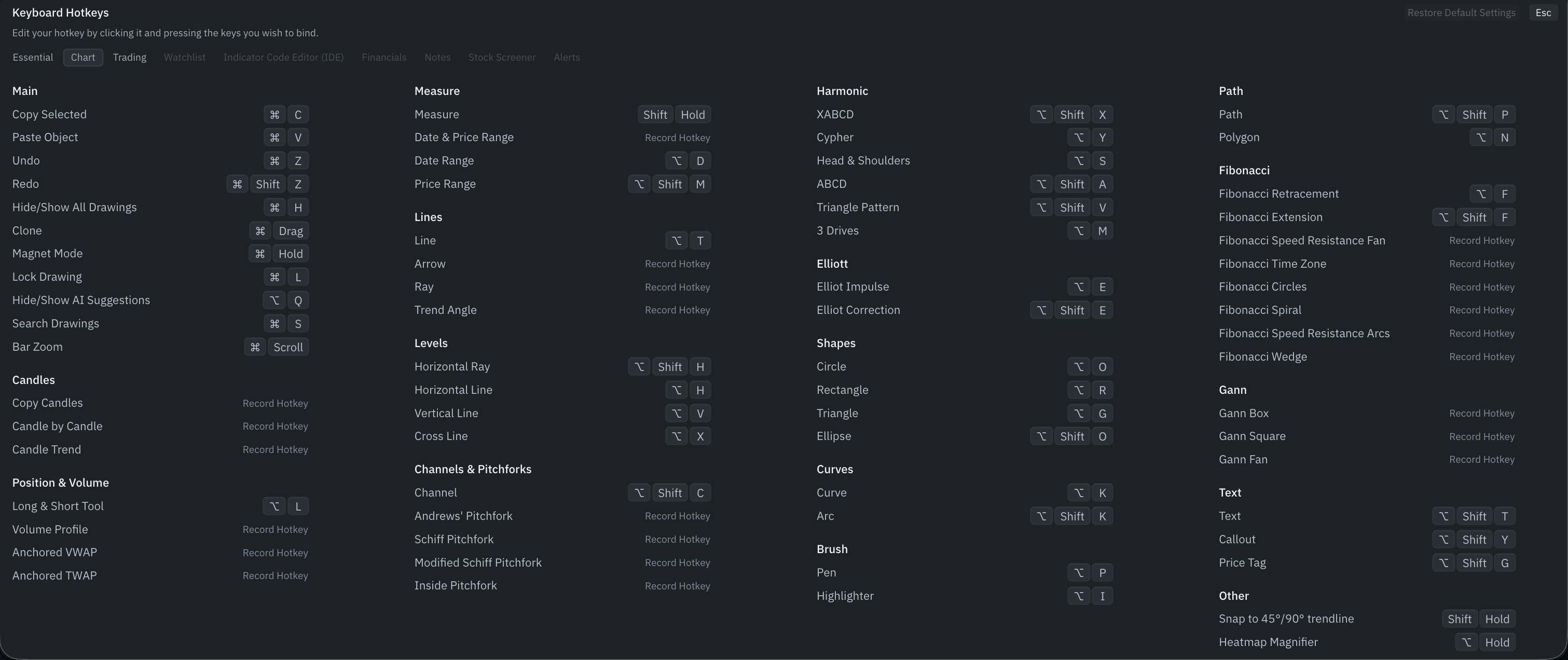
Lists & Tables
Customizing Your Hotkeys
You can customize hotkeys in TakeProfit to fit your personal workflow. You can rebind your most-used actions to your preferred key combination to navigate the platform without lifting your hands from the keyboard. Looking for chart drawing Hotkeys? Check out the full Keyboard Hotkeys Guide for Drawing Tools. You can always access the full list of available hotkeys by clicking the question mark icon in the top-right corner of the platform and selecting Keyboard Hotkeys.
Subscription Limitations for Workspaces
- All-In: Unlimited workspaces
- Freeroll: 2 workspaces