

Creating a New Account
There are two ways to initiate the registration process:- Click the Try for Free button in the top right corner of the website. (Once you have an account and are signed in, that button becomes Go to workspace.)
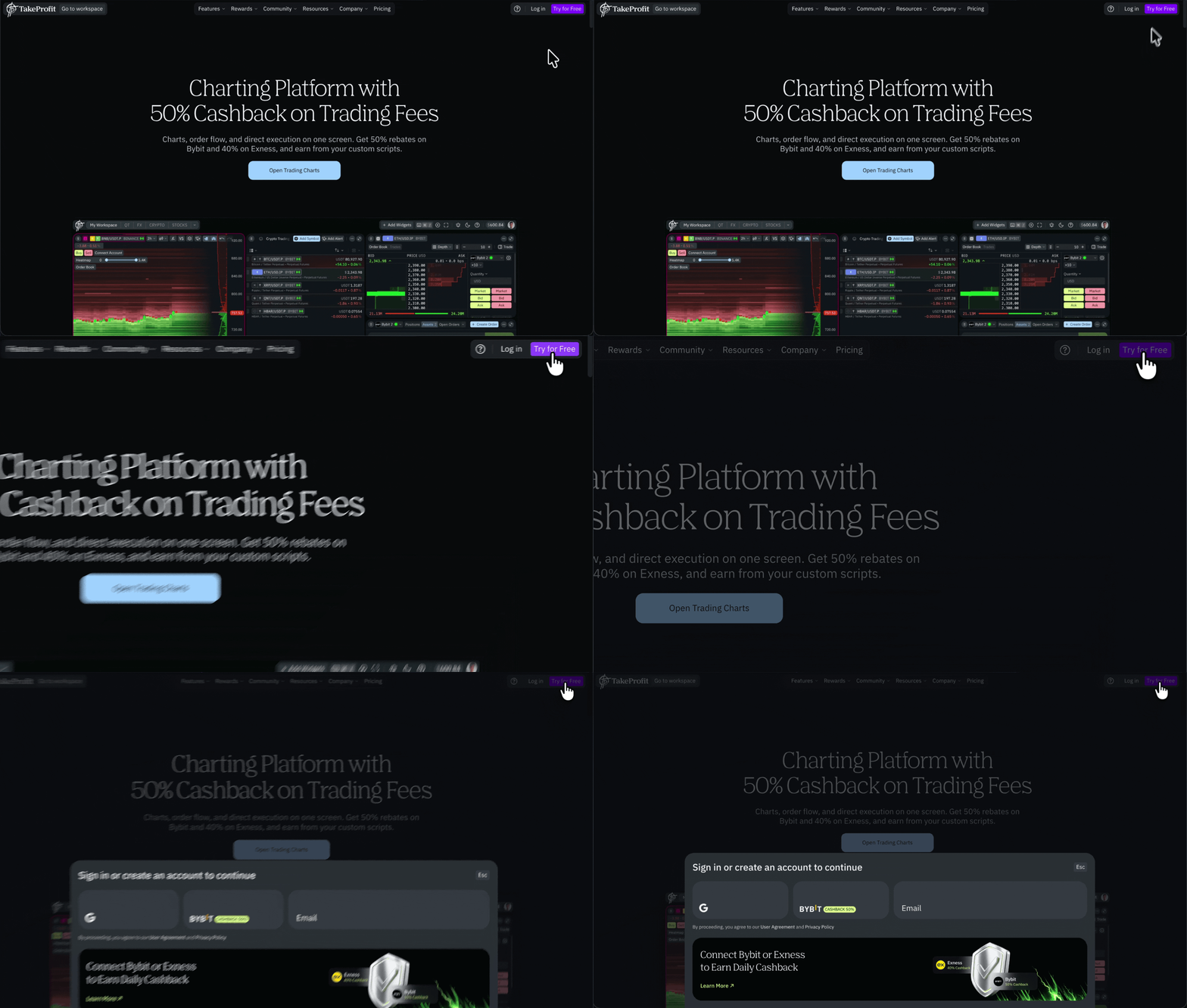
- Or start interacting with the platform at takeprofit.com/platform, where you’ll be automatically prompted to register.
Account Creation Options
You can create your account with Google, Bybit, or an email address.With Google or Bybit, no password is needed — sign in the same way you registered.
Verifying Your Email
Whichever method you pick, your email address is verified once:- Signing up with Google or Bybit uses the email attached to that account. If it doesn’t have one, you’re asked for it.
- You receive a verification email — click Verify Email in it, or paste the link into your browser.
- After that both routes work: the email and the account you signed up with.
- If you signed up from TakeProfit’s built-in AI Chat, you return to it and can keep the conversation going. To drive the platform from an external assistant such as Claude or ChatGPT instead, see the MCP server guide.
-
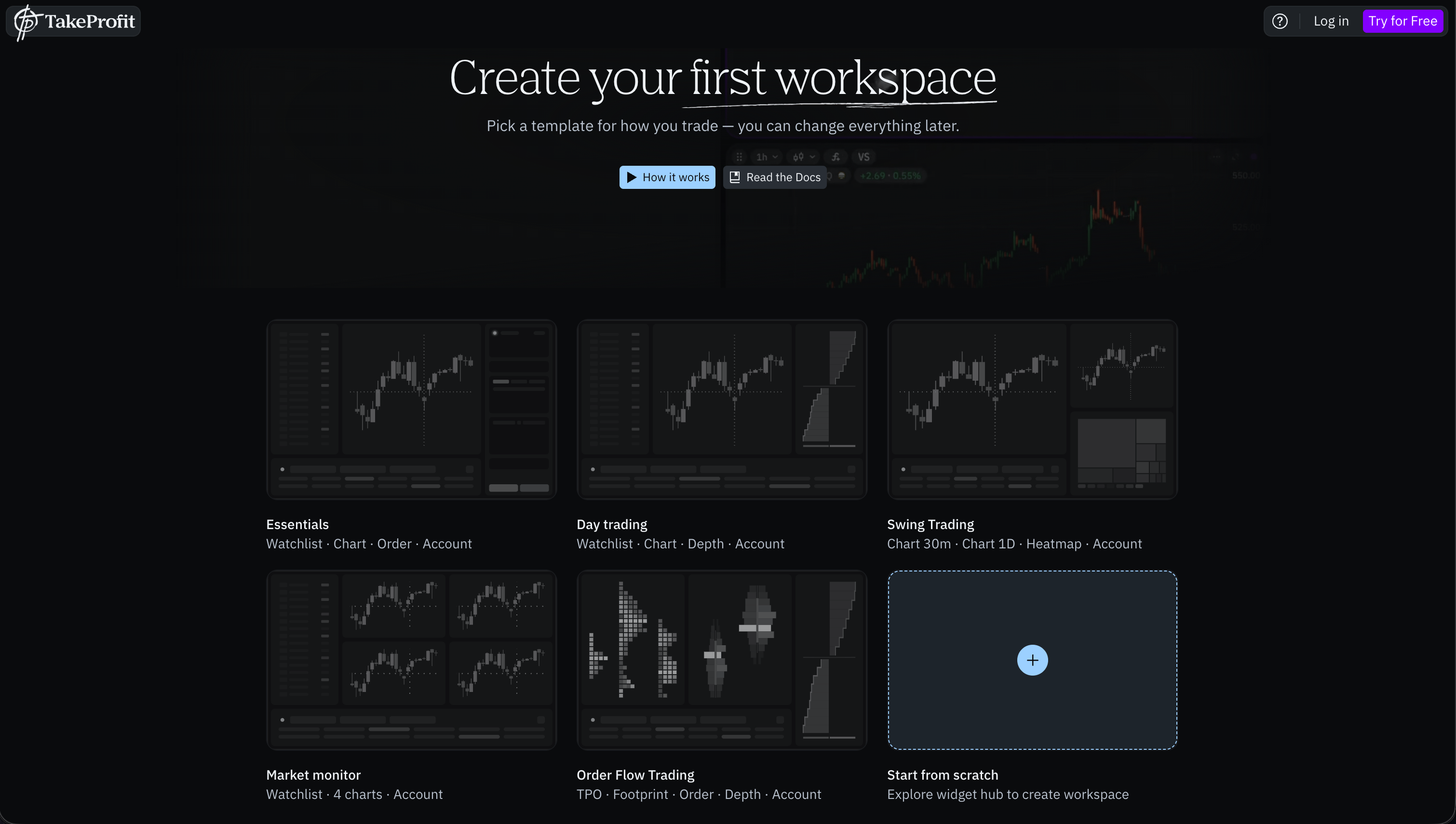
Otherwise you land on Create workspace, where you pick a template or start from scratch — see Workspaces.
- If no exchange is connected yet, the exchange connection window opens automatically. Close it and connect later if you’d rather — see Brokers and exchanges.
If you registered through Bybit, your account is already linked, so the connection window is skipped. You see a confirmation screen with your Cashback rate instead.
Your Username
Your username is generated from the part of your email before@, and you can change it at any time in Profile Settings — the platform tells you as you type whether the name is available.
Once you complete these steps, you’ll have full access to:
- Comment on posts
- Create your own posts
- Use the platform’s features on the Freeroll plan.